Archive for the ‘Misc’ Category
Dynamics 365 App for Outlook “Can’t connect to Exchange”
The on-premise Dynamics 365 App for Outlook (version 9.1) stopped displaying the Track and Set Regarding buttons after “Legacy Exchange Tokens” were disabled for Exchange Online in October/November 2025 (see here). The message “Can’t connect to Exchange” is displayed instead.
To fix this, we need to use the Graph API to authorise the app for Exchange Online, and update the server application files.
Step 1: Create an App registration in Entra
Log into https://entra.microsoft.com/ for the Exchange tenant as an administrator
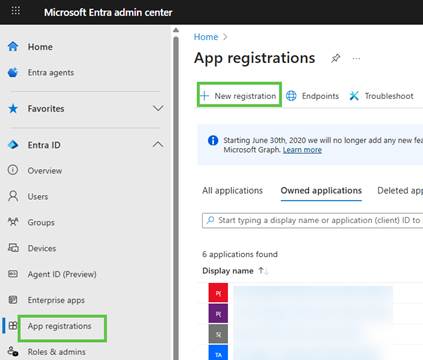
Navigate to App registrations and click New registration
Set Name to ‘Dynamics Outlook App’
Set Support account type to the Single tenant option
Set Redirect URI to Single-page application (SPA) and the URL to https://your_org_url/crmmailapp/msalAuth.html
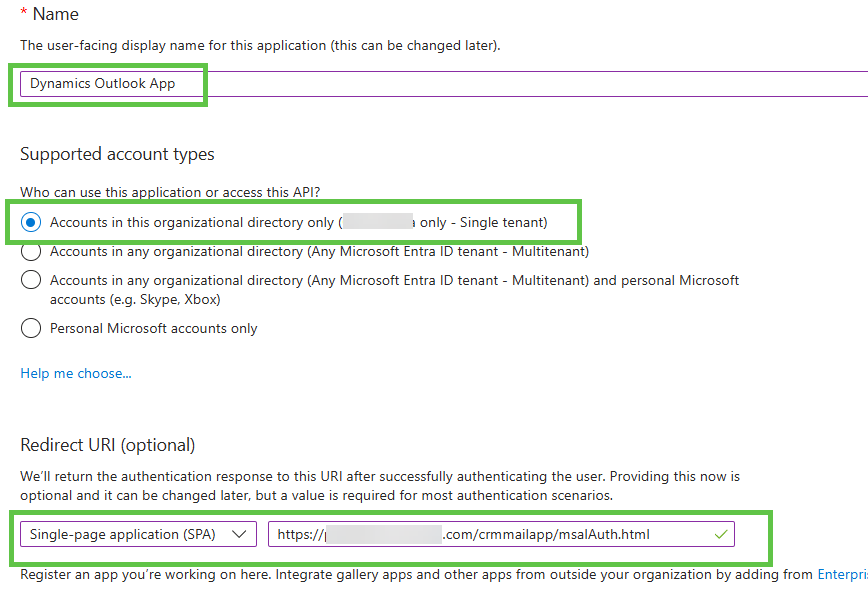
Click Register at the bottom of the page
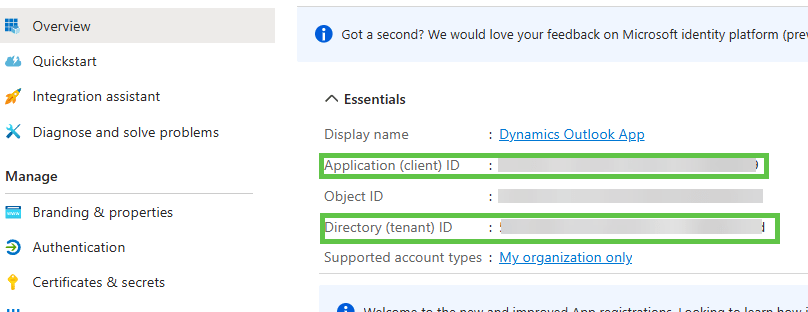
Note the Application (client) ID and Directory (tenant) ID for later
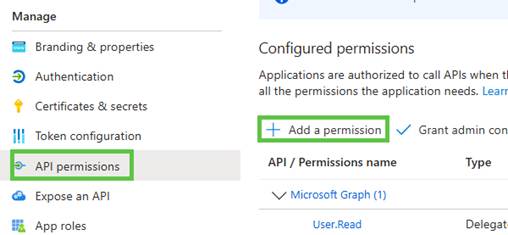
Navigate to API permissions and click Add a permission
Select Microsoft Graph, then Delegated permissions
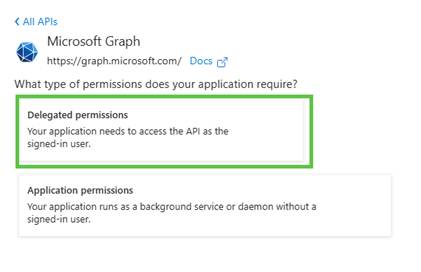
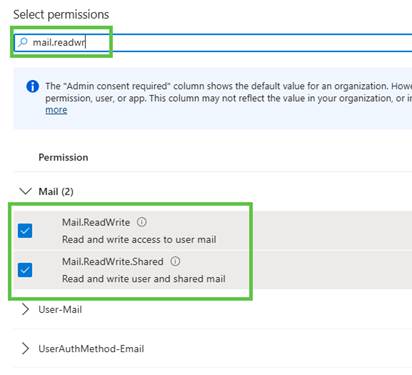
Select the permissions Mail.ReadWrite, Mail.ReadWrite.Shared, Calendars.ReadWrite and Calendars.ReadWrite.Shared, then click Add permissions

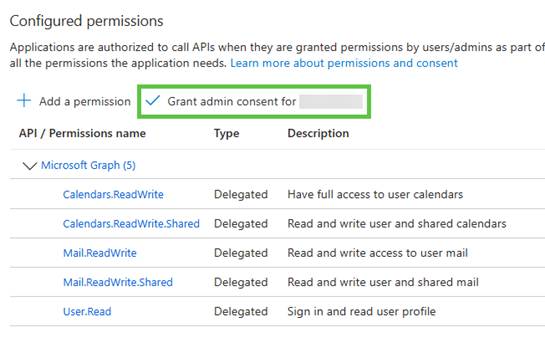
Click Grant admin consent
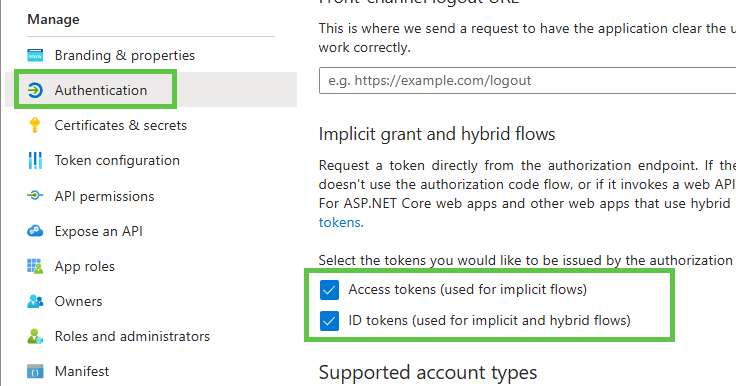
On the Authentication tab, select Access Tokens and ID tokens, then click Save
Note the Client ID and Tenant ID from the Overview tab for the next step
Step 2: Install the managed solution into the Dynamics organisation
Download the managed solution from here, then install it into the affected organisation. The solution contains a new entity called ‘mailapp_setting’.
Once installed, navigate to https://your_org_url/main.aspx?pagetype=entitylist&etn=mailapp_setting
Add 2 new records:
Name: graph_appid
Setting value: The Application (client) ID noted from Entra
Name: azure_tenantid
Setting value: The Tenant ID noted from Entra

Add read permission to the new MailApp Settings entity to all users via Security Roles. (I added it to the Dynamics app for outlook role which we assign to all users using the app) and full permissions to other admin users
Step 3: Replace the crmmailapp files on the Dynamics servers
On the CRM server(s), backup the folder C:\Program Files\Dynamics 365\CRMWeb\crmmailapp
Download crmmailapp-updated.zip from here
Delete the contents of C:\Program Files\Dynamics 365\CRMWeb\crmmailapp
Copy the contents of crmmailapp-updated.zip to the C:\Program Files\Dynamics 365\CRMWeb\crmmailapp folder
Step 4: Test
Clear browser cache or open an incognito window to test the Outlook app
If working correctly, you should be prompted to sign into Dynamics, then Office 365 and the Track and Set Regarding buttons will be available again.
Note: We may need to copy the original contents of crmmailapp back before running future update rollups, so keep the backup safe.
Dynamics 365 Outlook Client Not Rendering Views After September 2018 Update
The 5th September 2018 Office 365 update has stopped the Dynamics 365 Outlook client from rendering views.
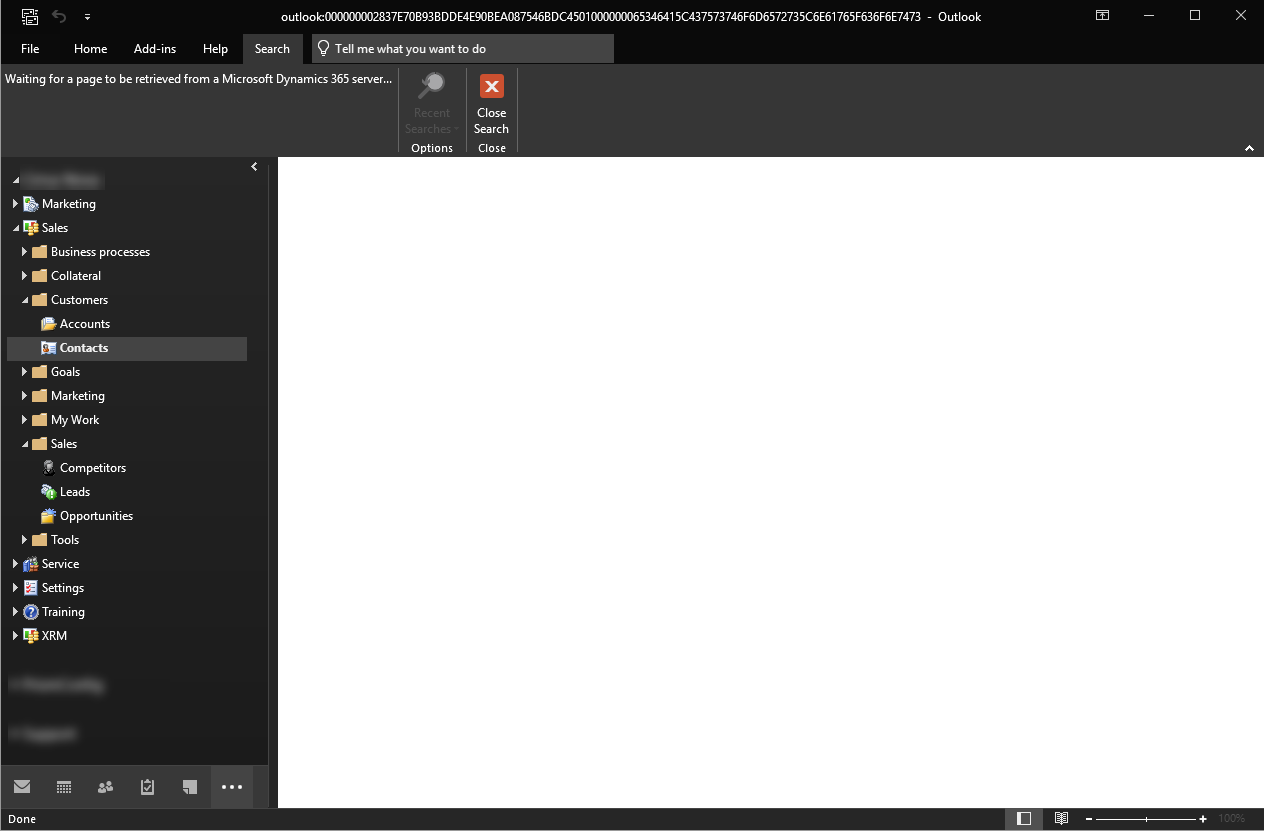
This is not resolved by the ‘EnableRoamingFolderHomepages’ registry key that fixed a similar issue after the October update.
To get it working again, you’ll need to roll back to the previous update, then turn off automatic updates until it is resolved:
See the edit at the bottom for a better workaround!
Rollback the update
To roll back to the previous update, run the below from a command prompt
Read the rest of this entry »
Outlook Client Repeated Login Prompts Post V9 Upgrade
After your Dynamics 365 organisation has finally been updated to the July 2017 October 2017 December 2017 February 2018 V9 version, you may find that your Outlook client (full version, not the lightweight app) no longer works.
Uninstalling and re-installing the version offered via the ‘Get Apps’ page within Dynamics 365 doesn’t help as you are repeatedly prompted for your login when trying to configure the organisation.
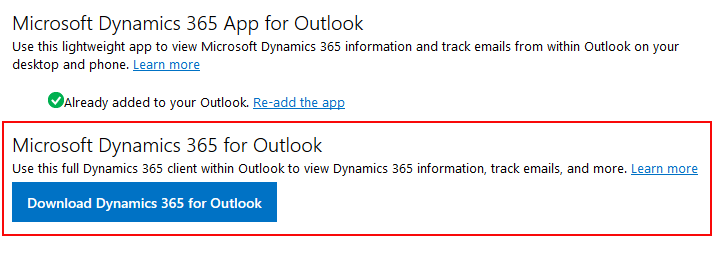
Viewing the trace log gave the error:
Metadata contains a reference that cannot be resolved: 'https://crm_url/XRMServices/2011/Organization.svc?wsdl&sdkversion=8.2
This is because the Outlook client is still using the old SDK (8.2) which is still using SSL rather than the TLS1.2 protocol for authentication required by V9.
The solution is to install update KB4054414 after installing the Outlook client.
Silverlight no longer works in Chrome 42
In Google’s continuing effort to annoy me, starting with Chrome version 42, the Silverlight plugin no longer works. This is due to Google no longer supporting NPAPI plugins (see here).
To get around it until September 2015, you can use the below fix to re-enable NPAPI.
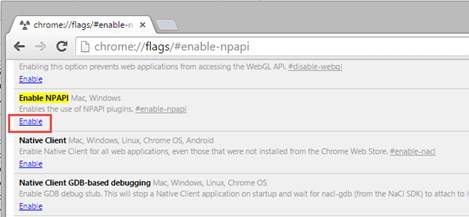
1. Type the below into the Chrome address bar and press enter: –
chrome://flags/#enable-npapi
2. Click on ‘Enable’ under ‘Enable NPAPI’
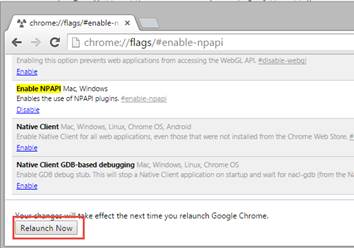
3. Click on ‘Relaunch Now’ when it appears towards the bottom of the screen
You’ve now got until September to re-write your Silverlight controls in a compatible technology. Good luck!
Chrome 37 breaks CRM 2011 and 2013 functionality
Google has removed a number of APIs from Chrome 37 which is causing a lot of issues with CRM 2011 and CRM 2013. So far I’ve noticed: –
- You can no longer add options to Option Set fields via customisation
- Changes made to an email in a workflow are not saved when the save button is clicked
- The ‘Upload’ button on the SharePoint list component no longer works
- Anything using the ‘window.showModalDialog’ function no longer works as the API has been deprecated
- Can no longer save field properties such as ‘Visible by default’
- Export to Excel no longer works
In order to fix the problem until Microsoft issue a real fix, you can re-enable the deprecated features by following the below: – Read the rest of this entry »
Moved to WordPress
Unfortunately, Posterous is closing down, so I’ve transferred my blog to WordPress.
Some of the SQL and JavaScript formatting got lost during the transfer, so I’m currently in the process of checking it all over. If you find anything not working, leave a comment and I’ll get it fixed.
Thanks!
Microsoft Community Contributor Award
Well this was a nice way to end the week!
I’ve just received an email from Microsoft informing me that I have been recognised with a Microsoft Community Contributor Award. This is awarded to people who freely contribute their time to helping others in Microsoft online communities.
I’m honoured, thank you Microsoft!
Scribe Certified!

After using Scribe for most of my CRM integrations for the last 2 years, it was about time I took the certification exams.
Although I have been using the product for some time, the training material provided was invaluable and I learnt a lot that I would never have picked up in day to day use. It’s well worth reading/watching if you use or are planning on using Scribe.
I’m pleased to say that I passed both the Server and CRM adapter exams. Not a bad start to 2011!
CRM Timeline
Lauren Carlson over at Software Advice, has created a great interactive timeline showing the growth of CRM software over the last 3 decades. It’s very interesting to see how much has changed over the last 30 years and I can’t wait to see what happens in the next 30! Keep an eye on it, as it will be updated over time.
Internet Explorer 9 – First Impressions
I’ve just downloaded and installed the public beta of the next version of Internet Explorer, IE9 and wanted to share my first impressions.
Once installed, the first noticeable difference is how minimal the interface has become. The address bar and tabs section seem to take up roughly 66% less screen space, since the address bar, search box and tabs are now all located on the same row. As I usually have a lot of pages open, I didn’t think I’d like the repositioning of the tabs, but it really hasn’t caused me any problems.

The next thing I noticed is the speed. It really flies. Microsoft have added GPU acceleration to IE9, so a lot of image rendering is now performed by your graphics card rather than your CPU.
Another great new feature, is the ability to add web shortcuts to your taskbar. You just drag the favicon from the address bar to your taskbar to create a shortcut. This is great if you want quick access to applications such as your email and it really feels like you’re launching an app rather than a browser.

 Neil McDonald's Dynamics 365 and Power Platform Blog