Archive for Nov 2025
Dynamics 365 App for Outlook “Can’t connect to Exchange”
The on-premise Dynamics 365 App for Outlook (version 9.1) stopped displaying the Track and Set Regarding buttons after “Legacy Exchange Tokens” were disabled for Exchange Online in October/November 2025 (see here). The message “Can’t connect to Exchange” is displayed instead.
To fix this, we need to use the Graph API to authorise the app for Exchange Online, and update the server application files.
Step 1: Create an App registration in Entra
Log into https://entra.microsoft.com/ for the Exchange tenant as an administrator
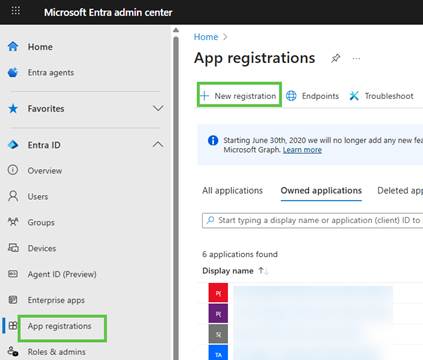
Navigate to App registrations and click New registration
Set Name to ‘Dynamics Outlook App’
Set Support account type to the Single tenant option
Set Redirect URI to Single-page application (SPA) and the URL to https://your_org_url/crmmailapp/msalAuth.html
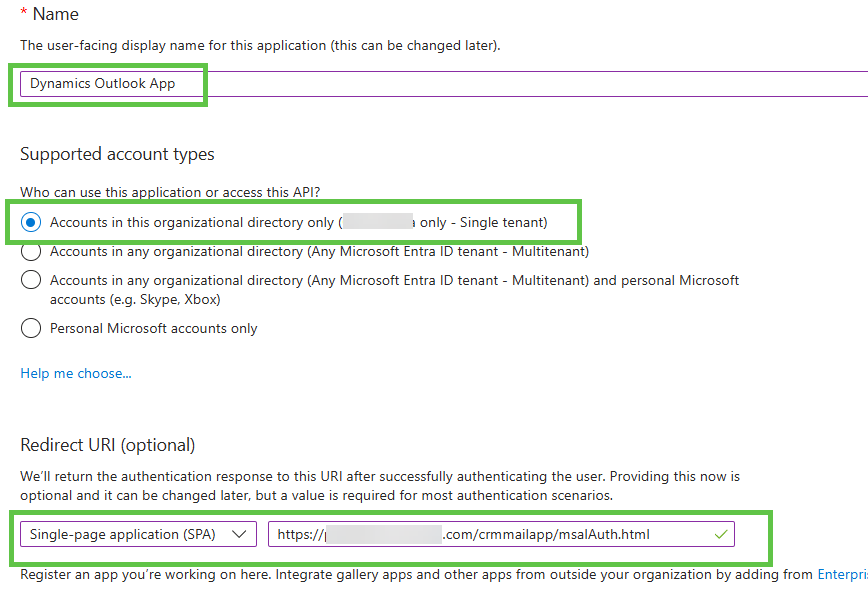
Click Register at the bottom of the page
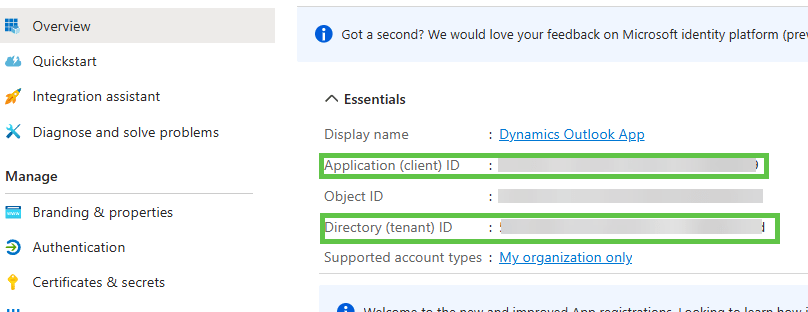
Note the Application (client) ID and Directory (tenant) ID for later
Navigate to API permissions and click Add a permission
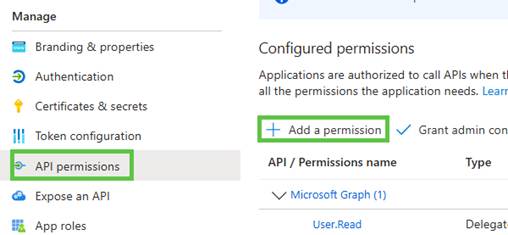
Select Microsoft Graph, then Delegated permissions
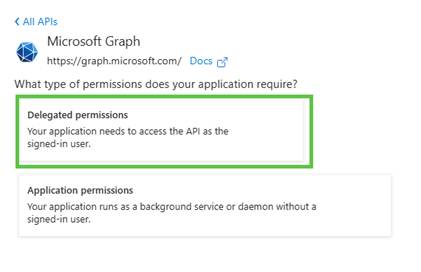
Select the permissions Mail.ReadWrite, Mail.ReadWrite.Shared, Calendars.ReadWrite and Calendars.ReadWrite.Shared, then click Add permissions
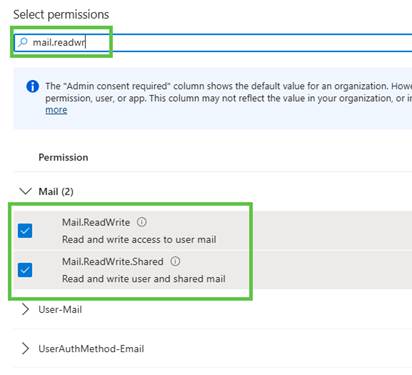

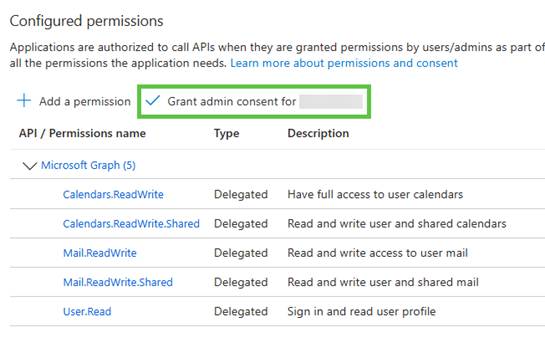
Click Grant admin consent
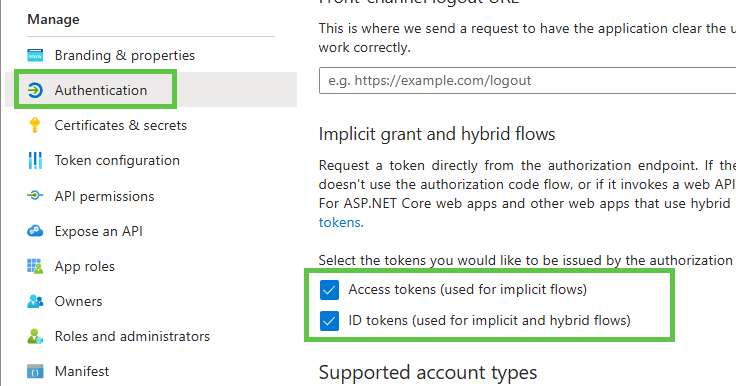
On the Authentication tab, select Access Tokens and ID tokens, then click Save
Note the Client ID and Tenant ID from the Overview tab for the next step
Step 2: Install the managed solution into the Dynamics organisation
Download the managed solution from here, then install it into the affected organisation. The solution contains a new entity called ‘mailapp_setting’.
Once installed, navigate to https://your_org_url/main.aspx?pagetype=entitylist&etn=mailapp_setting
Add 2 new records:
Name: graph_appid
Setting value: The Application (client) ID noted from Entra
Name: azure_tenantid
Setting value: The Tenant ID noted from Entra

Add read permission to the new MailApp Settings entity to all users via Security Roles. (I added it to the Dynamics app for outlook role which we assign to all users using the app) and full permissions to other admin users
Step 3: Replace the crmmailapp files on the Dynamics servers
On the CRM server(s), backup the folder C:\Program Files\Dynamics 365\CRMWeb\crmmailapp
Download crmmailapp-updated.zip from here
Delete the contents of C:\Program Files\Dynamics 365\CRMWeb\crmmailapp
Copy the contents of crmmailapp-updated.zip to the C:\Program Files\Dynamics 365\CRMWeb\crmmailapp folder
Step 4: Test
Clear browser cache or open an incognito window to test the Outlook app
If working correctly, you should be prompted to sign into Dynamics, then Office 365 and the Track and Set Regarding buttons will be available again.
Note: We may need to copy the original contents of crmmailapp back before running future update rollups, so keep the backup safe.
 Neil McDonald's Dynamics 365 and Power Platform Blog